|
|
|
|
SyncBreeze Server File Synchronization History
SyncBreeze Server and SyncBreeze Enterprise versions keep history statistics for last X file synchronization operations for each file synchronization command according to the user-specified number of command history tasks, which may be configured on the sync command options 'Advanced' tab. In order to open the file synchronization history statistics dialog for a file synchronization command, select the file sync command in the commands view, press the right mouse button and select the 'View Sync History' menu item. 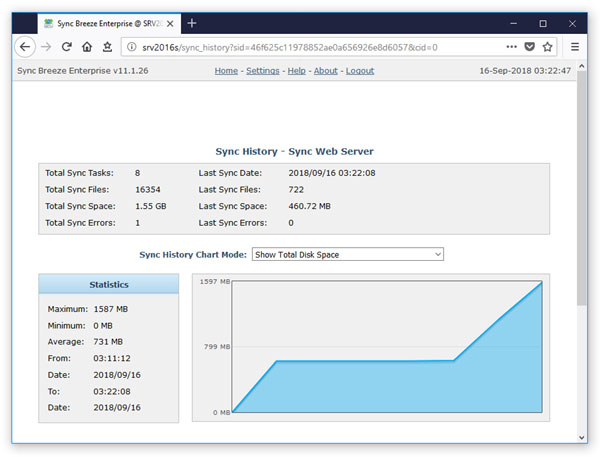
The file synchronization history dialog displays charts showing the total number of files in the synchronized directories, the total amount of disk space in the synchronized directories, the number of synchronized files, the amount of synchronized disk space, the amount of the free disk space in the destination directory and the number of file synchronization errors. In addition, the file sync history dialog shows a list of the last X file sync operations according to the number of history sync tasks configured on the file sync command options dialog. 
In order to change the number of history file synchronization tasks saved for the file sync command, select the file sync command in the commands view, press the right mouse button and select the 'Edit Command' men item. On the file sync command options dialog, select the 'Advanced' tab and set the 'Sync History Statistics' option to an appropriate value. File Synchronization History Reports SyncBreeze Server and SyncBreeze Enterprise provide the ability to export the file synchronization history to a number of standard file formats including HTML, PDF, Excel, CSV, text, JSON and XML. In order to save a file sync history report file, press the 'Save' button located on the file sync history dialog, select an appropriate report format, enter a report file name and press the 'Save' button. 
For example, the file synchronization history PDF report includes the file synchronization command summary, the list of completed file synchronization tasks and a number of timeline charts showing the total amount of disk space, the total number of files, the amount of synchronized disk space, the number of synchronized files and the number of file sync errors. 
In addition to the graphical report formats, the user is provided with the ability to export the file synchronization history to a number of structured file formats such as CSV, JSON and XML allowing one to analyze the file synchronization history using external analysis tools. AI Integration and Data Analysis One of the most powerful capabilities of SyncBreeze Server and SyncBreeze Enterprise product versions is the ability to export file synchronization history to AI-friendly file formats allowing one to easily import file synchronization history to various AI platforms, perform advanced analysis operations and generate user-custom charts. 
For example, in order to generate a timeline chart showing the total disk space usage for a file sync command using the ChatGPT AI platform, press the 'Save' button located on the file synchronization history dialog, export the file synchronization history to the JSON file format, import the JSON report file to the ChatGPT AI platform and ask ChatGPT to display a timeline chart showing the total disk space usage according to the uploaded JSON report file. 
In order to display a projected total disk space usage for a use-specified period of time, import the file synchronization statistics JSON report file to the ChatGPT AI platform and ask ChatGPT to interpolate the projected total disk space usage based on the historical data for this specific file synchronization command and extend the timeline chart with the projected total disk space usage. Similarly, the user can generate charts showing the projected amount of the free disk space, the projected amount of the file synchronization time, etc.
|
SyncBreeze News
|