|
|
|
|
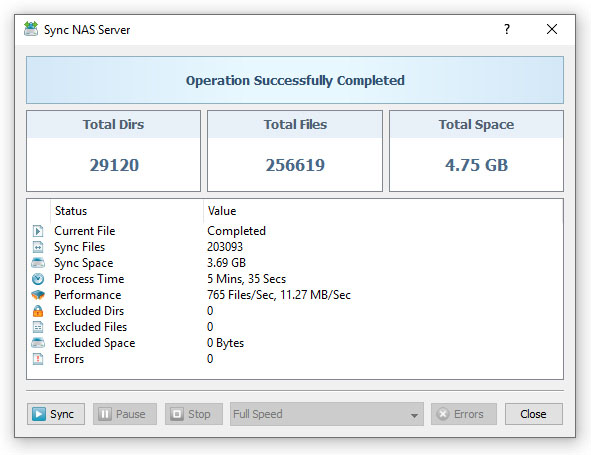
Using SyncBreeze Server to Synchronize Network Shares
By default, the SyncBreeze file synchronization server is configured to run under the local system account, which is good to synchronize files and directories located on local disks. On the other hand, the local system account does not have permissions to synchronize files and directories located on network shares and NAS storage devices. In order to enable the SyncBreeze server to synchronize network shares and NAS storage devices, the file synchronization server should be configured to run under a user account, which has permissions to access and write files and directories located on the required network shares. The configuration is very simple and may be performed within a couple of seconds using the following step-by-step guide:
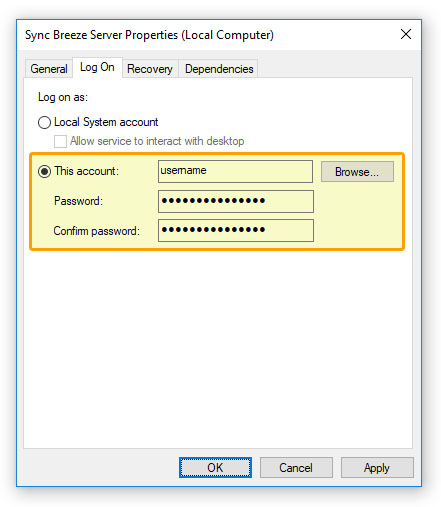
IMPORTANT: SyncBreeze Server runs in the background as a Windows service and therefore it has a separate space of mapped network drive letters. Mapped network drive letters visible in a desktop login session are not accessible to the SyncBreeze service and in order to synchronize network shares, the user needs to use UNC path names (\\server\share) or mount network drive letters using the SyncBreeze client GUI application.
Now, the SyncBreeze file synchronization server will run under the specified user account and will have exactly the same permissions as the specified account when accessing network shares and NAS storage devices. Synchronizing Files Between Different Domains Sometimes, it may be required to synchronize files between network shares and NAS storage devices in different domains using different user accounts. In order to connect to a network share with a custom user name and/or password, select the menu 'Tools - Connect Network Drive', enter the name of the network share to connect to and specify the user name and password to use. 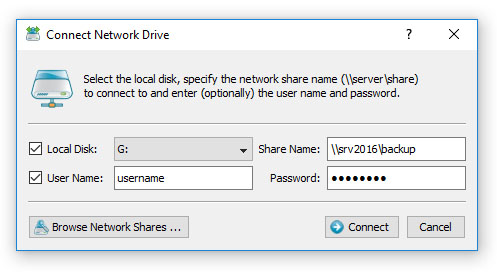
When synchronizing tens of network shares and NAS storage devices, it may be not convenient to assign a drive letter for each connected network share just because there may be not enough letters to assign to all the required network shares. For such cases, the user is provided with the ability to connect network shares without assigning drive letters. In order to connect a network share without assigning a drive letter, unselect the 'Local Disk' check box on the network share configuration dialog. 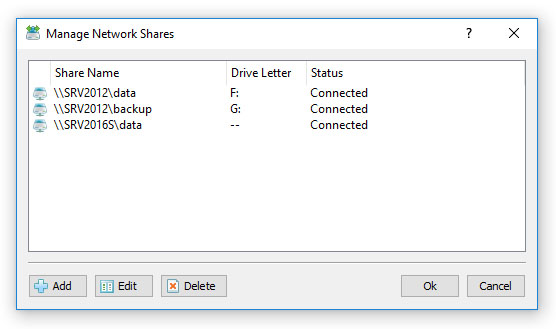
SyncBreeze Server provides the ability to configure periodic file synchronization operations to be executed fully automatically in the background. In order to enable automated synchronization of network shares and NAS storage devices, SyncBreeze allows one to pre-configure a list of network shares to be automatically connected during the server startup. The user is provided with the ability to specify an unlimited number of network shares to connect to and optionally configure custom login credentials for each specific network share. In order to pre-configure one or more network shares, select the 'Tools - Manage Network Shares' menu item, press the 'Add' button and specify all the required parameters.
|
SyncBreeze News
|